Terms And Conditions for Confluence on Forge
CLOUD FORGE
COMING SOON
Terms and Conditions for Confluence requests Atlassian Confluence users to accept an organisation's specific Terms and Conditions, Acceptable Use Policy or other similar content.
When this plugin is active, users must accept the specified Terms and Conditions if they wish to access your Confluence pages.
Each user is only required to accept the Terms and Conditions once. i.e. when a user accepts the T&Cs, they won't be prompted by the acceptance message again. Administrators can view a list of users who have accepted, including date and time.
Administrators can reset access and request all users to re-accept. For example, if an organisation's Terms and Conditions are changed/updated, all users can be requested to agree to new T&Cs.
Table of Contents
Installing Terms and Conditions
Log into your instance of Confluence as an admin.
Select the Apps dropdown menu from top navigation bar, and choose Find new apps.
Once the screen loads, you can type Better Blogs for Confluence Cloud in the search bar to find the appropriate app.
Select the app tile and the app details page of the specific app loads.
You can select Try it Free to install the app.
Once the app is installed, you will be notified via a success message. Following which, you can start using the app.
Using Terms and Conditions
Configuration
Once installed, Terms and Conditions can be configured by navigating to the Terms and Conditions Configuration page under Apps in Confluence Administration..
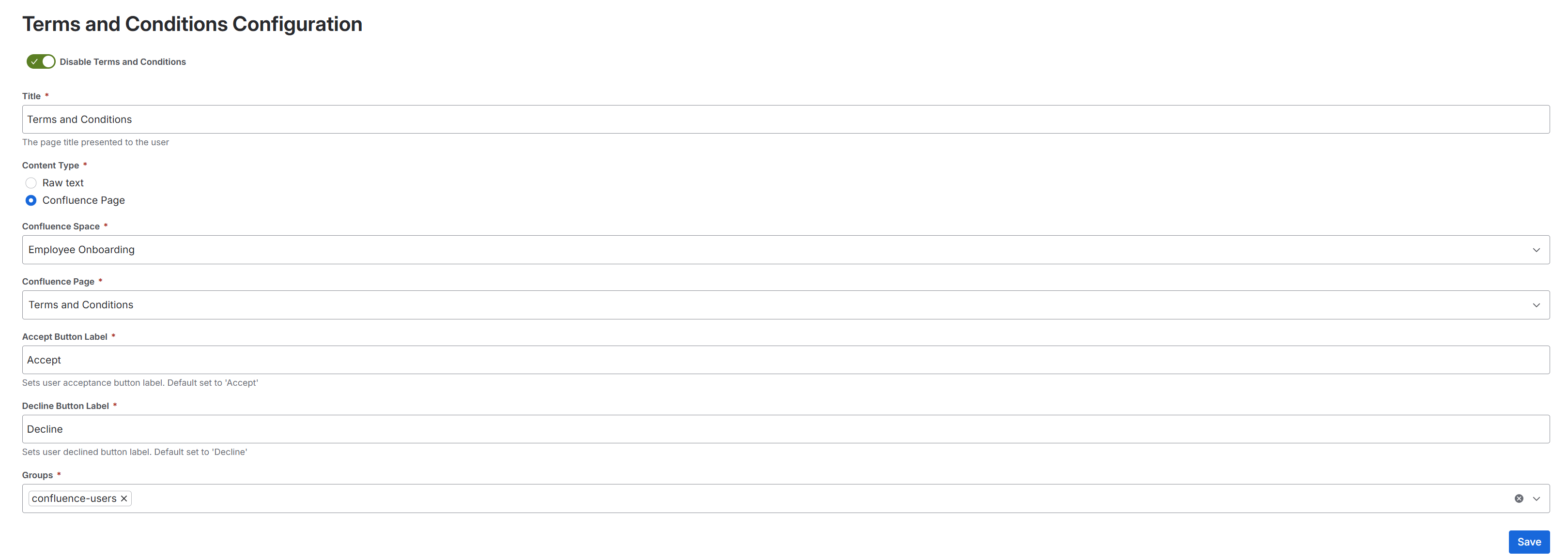
The Terms and Conditions configuration page present the user with four fields.
Title - This is the title of the page presented to the user.
Content - The content of the use policy or terms and conditions. This can be entered and plain text or set as a confluence page.
Accept Button Label - The word that appears on the acceptance button
Decline Button Label - The word that appears on the decline button
A word on Terms and Conditions Content.
The most user friendly way to present Terms and Conditions conte to users is by using a Confluence page on the instance that the app and all users have viewer access to. Plain text content, entered directly into the content field, will not respect new lines and formatting. This is a limitation that is unresolvable with the existing Atlassian Forge libraries.
User View
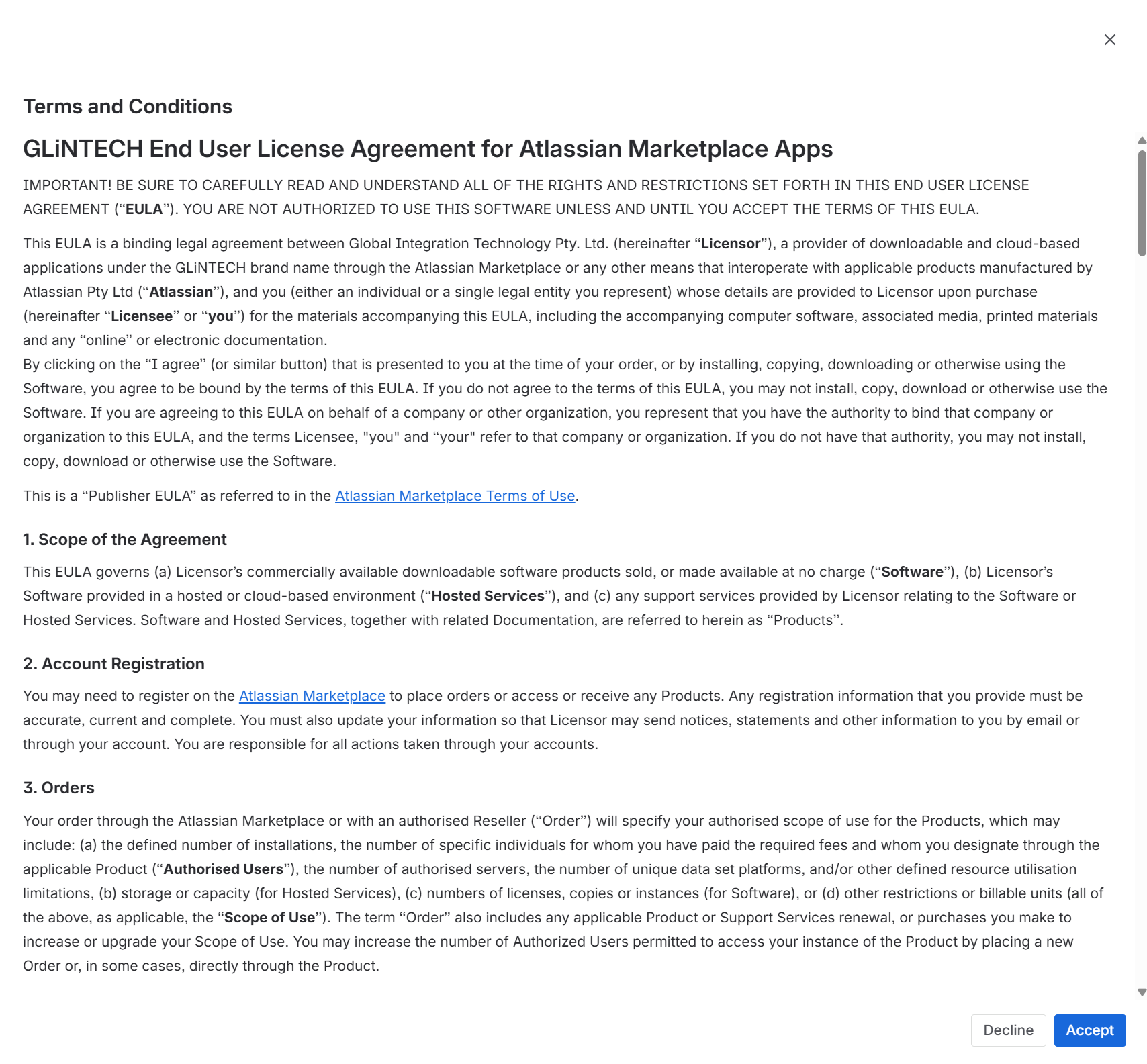
At first login, once the Terms and Conditions have been configured, the user is presented with a view of the T&Cs configured.
Requesting the user to re-accept
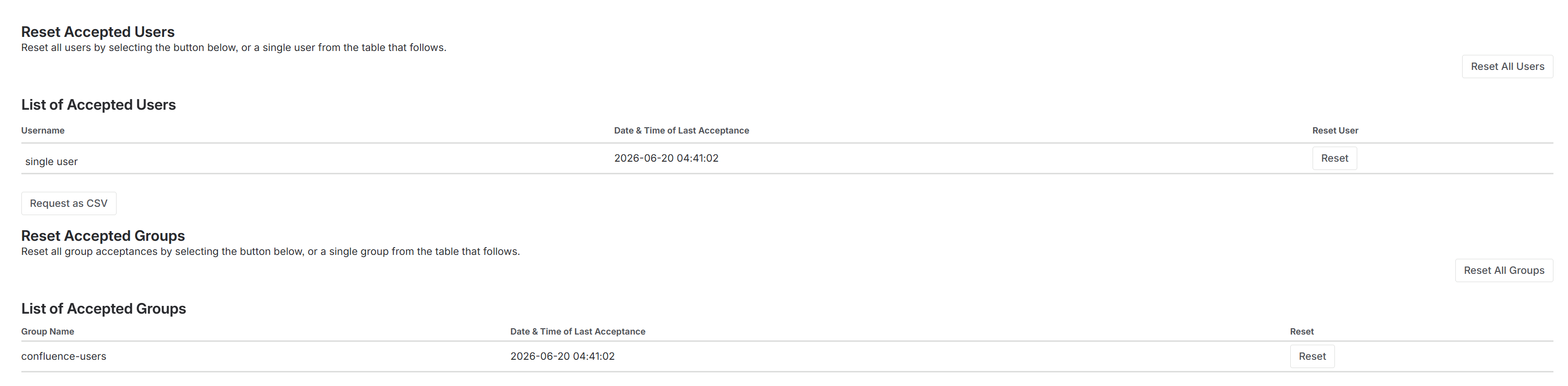
If policies change or the terms and conditions have been updated, the System administrator can request confluence users re-accept the changes by resetting their initial acceptance.
The System Administrator can reset individual users or all users.
Additionally, a System Administrator can see exactly who has accepted the user-policy or terms and conditions by listing all accepted users.
Content From Page
Administrators can now use the content of a Confluence page to compose their Terms and Conditions content. Content will be displayed in the format used on the page, saving the administrator time.
Please note that content can not contain:
images or attachments
video
confluence macros including smartcards
If a page selected contains any of these macros, then an error will be shown when saving the configuration.
When saving a Confluence Page as content, the user will also be notified if the app does not have permission to access that page. Add the user to the spaces permissions to rectifiy this issue.
Groups
At times, a user can accept the defined terms of use policy on behalf of their department or team.
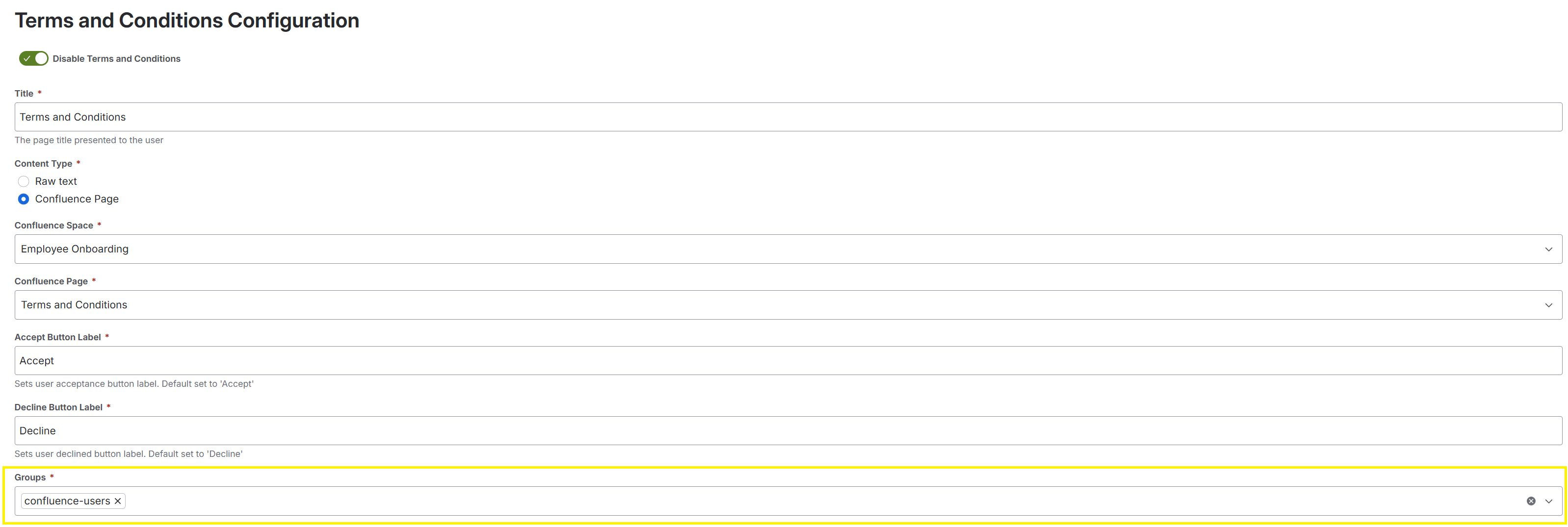
To enable this, a new Group field has been added to the terms and conditions configuration page. Any listed groups in this field will enable this functionality.
When a user, in one of these groups, logs on and accepts the T&Cs it is considered an acceptance on behalf of the whole group. No other user will be prompted with the T&Cs again.
To request a group to accept again, we have also provided a reset section.
To provide further transparency an additional Database table has been created to provide an audit trail of all group actions, including resets.

Export
A list of all accepted used can be download in CSV format by selecting the Request as CSV button.
